Mobile apps reach billions of people. AI now helps at every stage - from designing screens and writing code to adding smart features inside the app. This chapter shows you how to go from idea to app store.
Flutter (Dart), React Native with Expo (JavaScript)
One codebase for Android and iOS
Native code + AI assistant
Kotlin in Android Studio, Swift in Xcode
Best performance and device features
Prompt-to-app builders
AI builders that generate mobile projects
Quick first versions to test ideas
For most beginners, Flutter or React Native (Expo) with an AI coding assistant is the sweet spot: one codebase runs on both Android and iPhone, and the AI can write most of the boilerplate for you. Android Studio and Xcode also include built-in AI coding help.
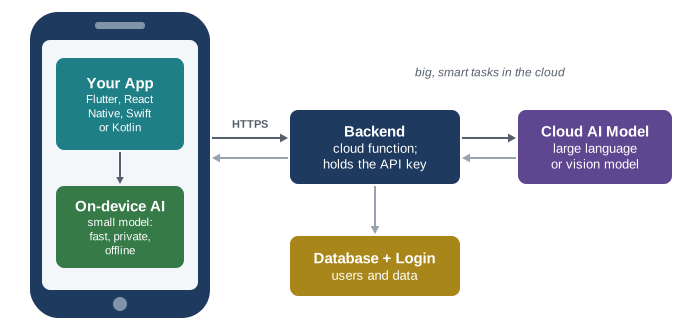
Cloud AI - for chat, writing, complex image understanding. The app calls your backend (for example a cloud function), which holds the API key and calls the model.
On-device AI - for fast, private, offline features such as text recognition, translation, object detection or a small language model. Toolkits include Google ML Kit, LiteRT (formerly TensorFlow Lite), Apple Core ML, and built-in phone AI features such as Gemini Nano on supported Android devices.
Step-by-step: build a "Homework Helper" app ▶ Watch
Define the idea. A student photographs a question and gets a step-by-step explanation.
Sketch the screens. Ask AI: "Suggest a simple 4-screen layout for this app." Draw it on paper or in a design tool.
Set up the project. Install Flutter or Expo; ask the AI assistant to explain each setup step.
Generate the screens. Prompt: "Create a Flutter screen with a camera button, image preview and an Explain button."
Build the backend. A cloud function receives the photo, sends it to a multimodal AI model, and returns the explanation.
Test. Run on an emulator and a real phone. Try bad photos, no internet and long answers.
Polish. Add loading indicators, error messages, dark mode and accessibility labels.
Publish. Create developer accounts, prepare screenshots, a privacy policy and a store listing, then submit for review.
Example: calling your backend from React Native ▶ Watch
async function explain(question) {
  const res = await fetch("https://your-backend.example.com/ask", {
    method: "POST",
    headers: { "Content-Type": "application/json" },
    body: JSON.stringify({ question }),
  });
  const data = await res.json();
  return data.answer;   // no API key in the app!
}